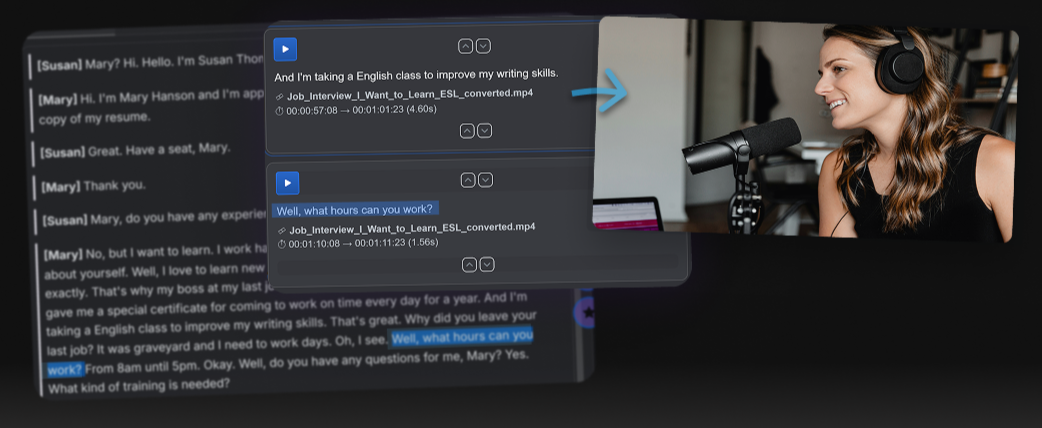
Edit video from text.
A faster workflow for interviews, podcasts and content creators.
Editing spoken-word video can be painfully slow. An interview can produce thousands of words — the generally accepted rule is that people speak around 3 words per second. That means just a 10-minute interview could be 1,800 words.
Whether you are editing a podcast, a video, or perhaps a brief news item, finding the best material within an interview can be a long old process. You are not reading but listening and keeping track of everything that is said can be a challenge. If you’ve worked in broadcast, this workflow will feel familiar.
There's a faster way - edit directly from the transcript.
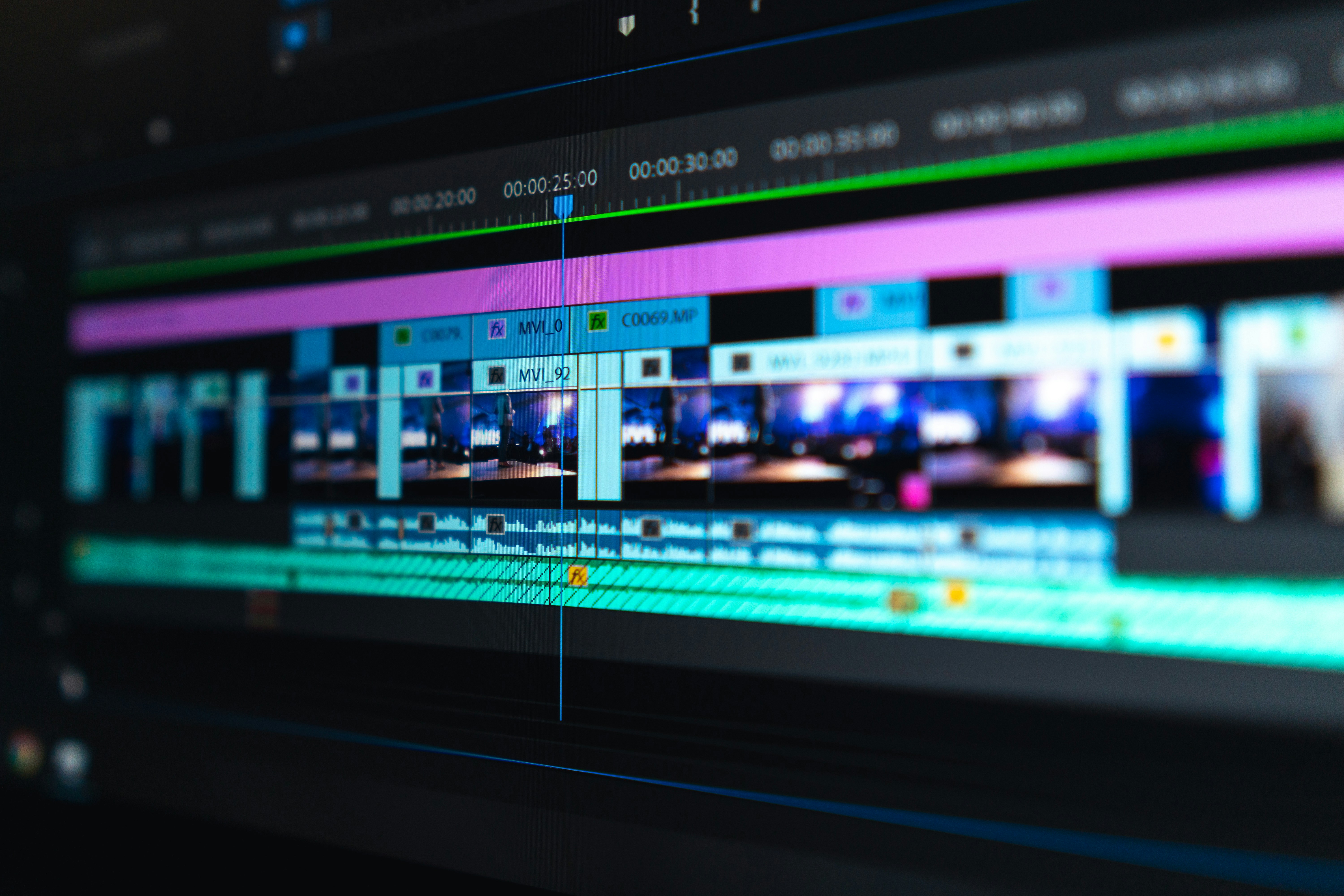
Why traditional video editing is so slow
Most modern editing tools are built around timelines.
That means:
- You have to watch everything
- Finding a specific quote is difficult
- Remembering the location of the best material is hard
If you’ve ever tried to pull highlights from a 30–60 minute interview, you’ll know how frustrating this is.
Why editing video from a transcript is faster than timeline editing
It’s much easier to read a document instead of watching material play back in real time — and that is why we use transcripts.
Editing with a transcript is nothing new and is standard practice in broadcasting.
Have an interview transcribed, highlight the interesting sections and work out where they sit within the original footage (source material).
Originally, transcriptions would be made ‘by hand’ by a very fast typist. With the rise of AI, this is now something a computer can do very well. As a result, most editors and producers dealing with large volumes of interview material rely on transcriptions.

What is transcript-based video editing?
Transcript-based editing takes this process a step further. Imagine you could read a transcribed interview, highlight the parts you are interested in, and have those extracts instantly assembled as a video.
Edit the text version of your video.
This means you can:
- Scan content instantly
- Search the text for keywords and phrases
- Build clips by selecting text
- Find the timecode of any word
It’s like editing a document — but it controls your video.
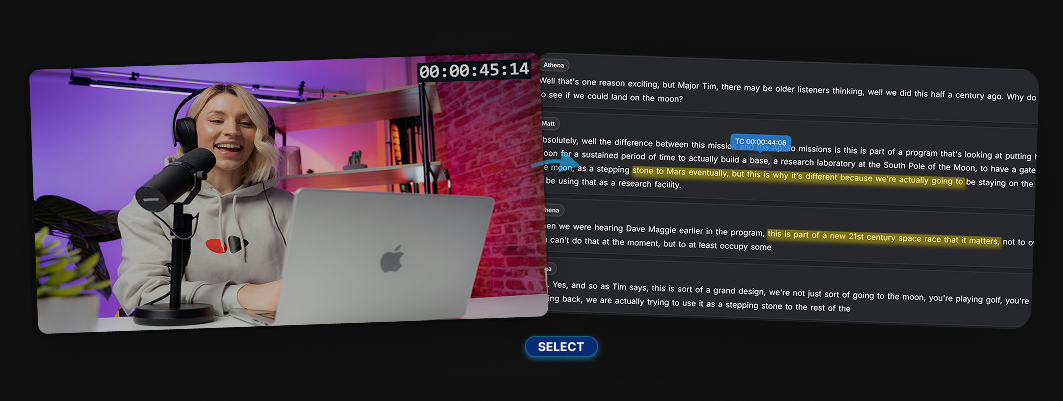
Step-by-step: How to edit video from a transcript
Here’s the simple workflow.
1. Transcribe your video
First, convert your video or audio into text using AI transcription.
This gives you:
- A full transcript
- Word-level timings (important for accuracy)
2. Scan and find key moments
Instead of watching the whole video, you can:
- Read through the transcript
- Search for keywords
- Identify strong quotes instantly
This alone can save a huge amount of time.
3. Select text to create clips
Now the powerful part.
You can:
- Highlight sentences or paragraphs
- Select only the parts you want
- Ignore everything else
Each selection becomes a potential clip.
If you want to try this workflow yourself, tools like Fabel are designed specifically for this approach.
4. Cut filler words and clean dialogue
Because you're working with text, you can quickly remove:
- “um”, “uh”, pauses
- Repeated phrases
- Unnecessary chatter
This would take much longer on a timeline.
5. Export your clips
Once you’ve selected your material you can:
- Create sequences
- Turn them into individual clips
- Export for social media
- Build structured edits quickly
How transcript-based editing fits with tools like Avid and Premiere
Transcript-based workflows are not new.
Professional editing systems like Avid Media Composer, Adobe Premiere Pro, and DaVinci Resolve have all introduced transcription and text-based editing features in recent years.
These are powerful tools — and in the hands of an experienced editor, they can absolutely support this way of working.
However, they are still fundamentally built around the NLE (non-linear editing) timeline.
That means:
- the transcript is often secondary to the edit
- the workflow still lives inside the NLE
- it is primarily designed for the editor, not the wider team
In many real-world workflows, especially in broadcast, there is often a separation between:
- the edit producer or journalist, who shapes the story
- the editor, who builds the timeline
This is where a transcript-first tool can offer a different approach.
Instead of adapting the timeline to text, the workflow starts with the transcript itself.
Tools like Fabel are designed around this idea. They allow teams to:
- work directly from the transcript as the primary interface
- select and structure content before it reaches the timeline
- enable producers or journalists to shape edits without using complicated software
- review and select material on desktop or mobile
- export clips as video or audio files
- send structured edits into professional editing systems using AAF
- create time-coded scripts
It is not about replacing traditional editing systems. It is about making the process leading up to the edit faster, more flexible, and more accessible.
Fabel is designed for the stage before the edit — where stories are shaped from transcripts.
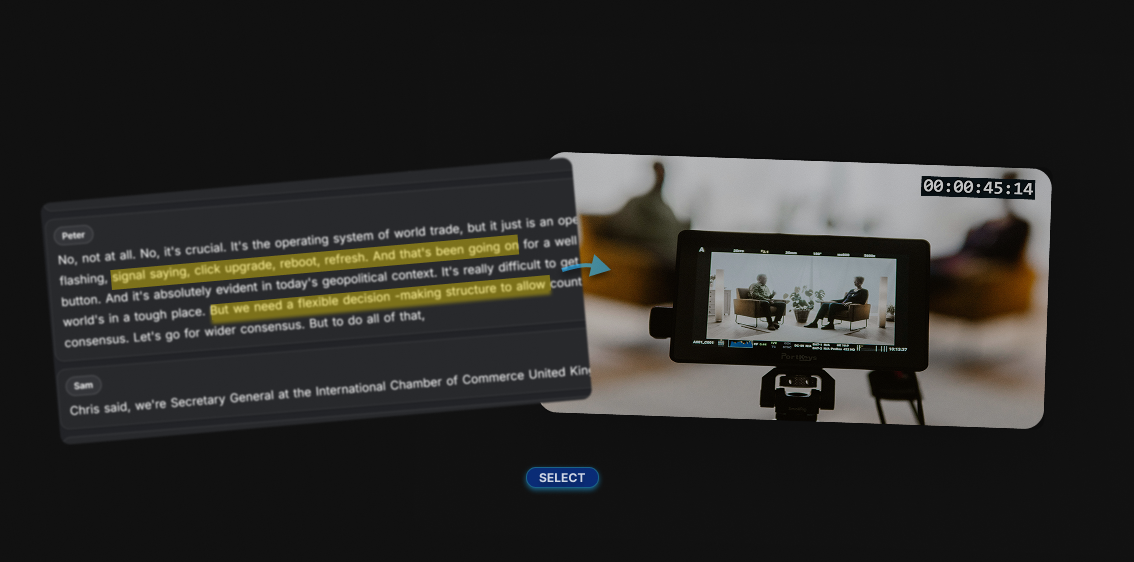
When this workflow is most useful
Transcript-based editing is especially powerful for:
- Interviews
- Podcasts
- YouTube content
- Talking-head videos
- Social media clips
If your content is speech-heavy, this workflow can dramatically speed things up.
Final thoughts
Editing video from a transcript isn’t just a small improvement — it’s a completely different way of working.
- read
- select
- and build content faster
If you're working with long-form content, this approach can save hours on every project.
If you want to try this workflow Fabel is currently being developed for fast, text-based video editing. You can try the workflow yourself here: fabel.uk